Welcome Tour
Interface
RLXOS follows the traditional layout with a single bottom panel and desktop workspace that feels like HOME.
On the very left of the panel is the Application Menu from where you can search and launch any of your application. Next to the Application Menu are the workspaces, You can switch to the workspaces to organise your activites, After the there are Pinned application and task bar where your currently running applications are listed. On the right side of panel are System Tray for quick settings.
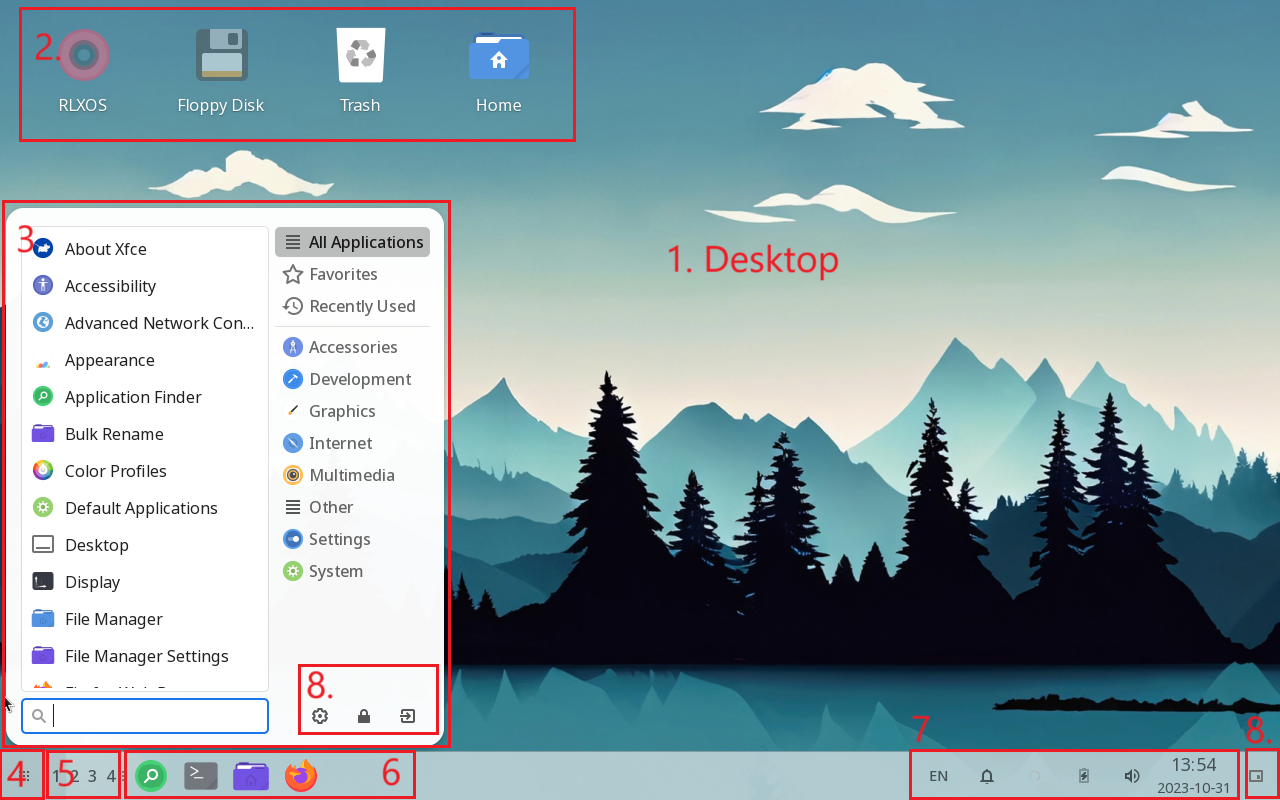
1. Desktop Workspace
Areas where you can organize and manage their open applications and windows separately. These workspaces enable multitasking and organization by allowing users to switch between different sets of applications and windows, effectively creating distinct environments for various tasks or workflows.
You can efficiently switch between various tasks by pressing Alt-Tab
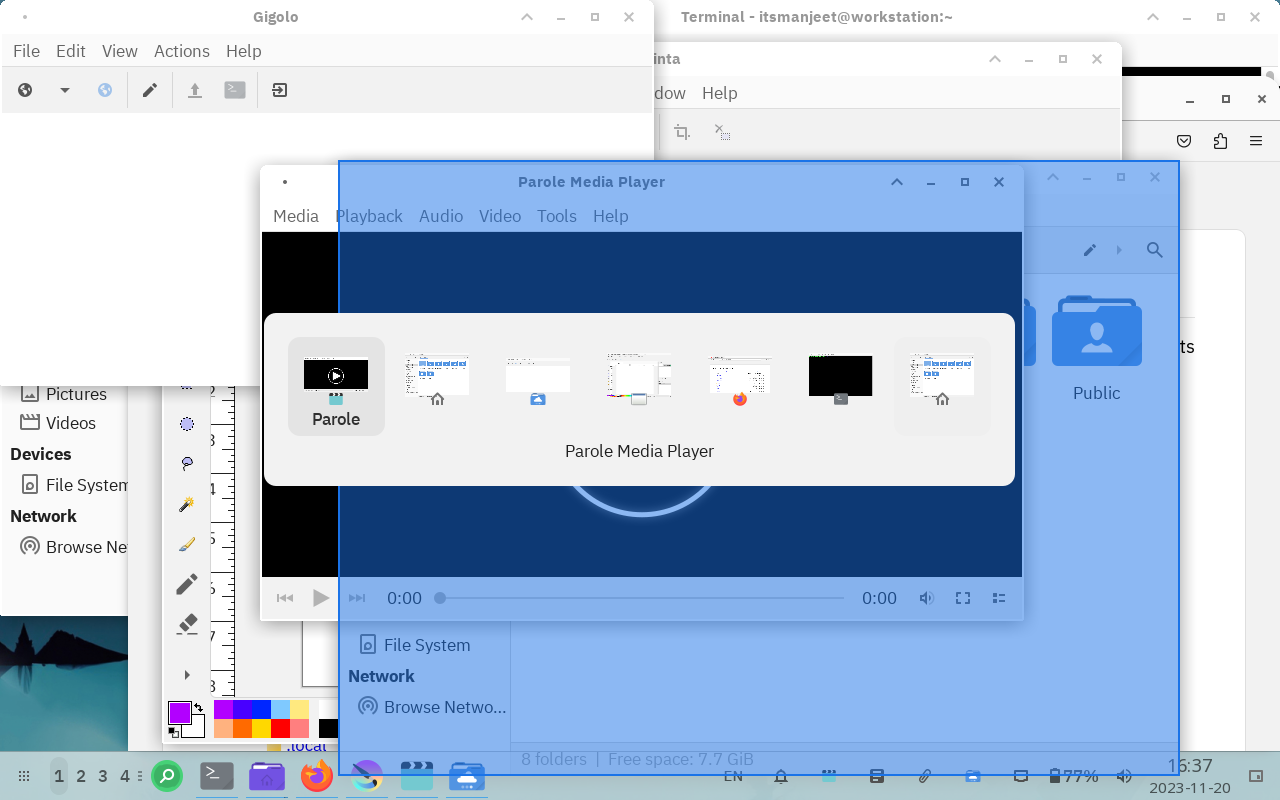
Or even manage and switch between multiple desktop workspaces using 5. Desktop Workpace Switcher
2. Desktop Icons
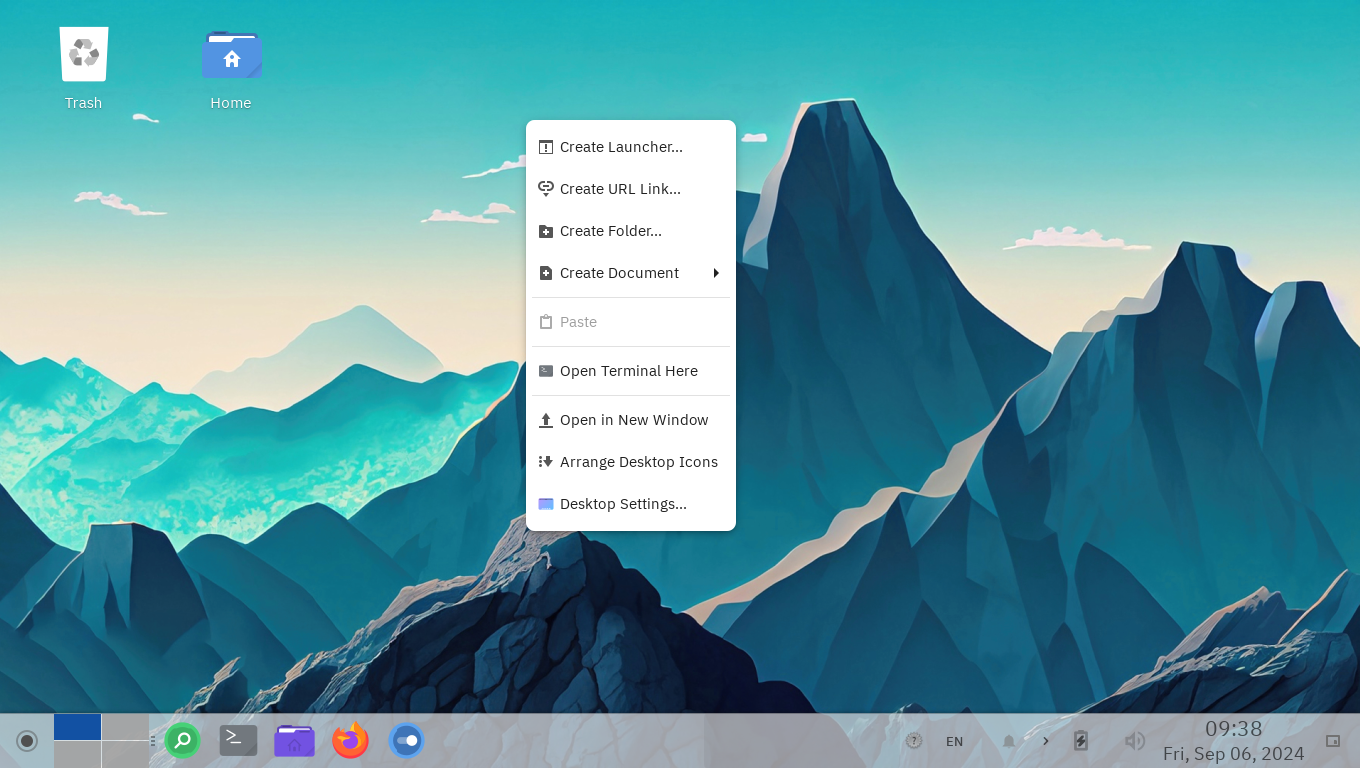
Desktop Icons serve as visual cues or quick-access points, allowing users to easily launch applications, access files, or execute specific system tasks by simply clicking on the respective icon. You can create custom icons
You can right-click on Desktop Workspace to create custom Desktop Icons
3. Application Menu and 4. Application Button
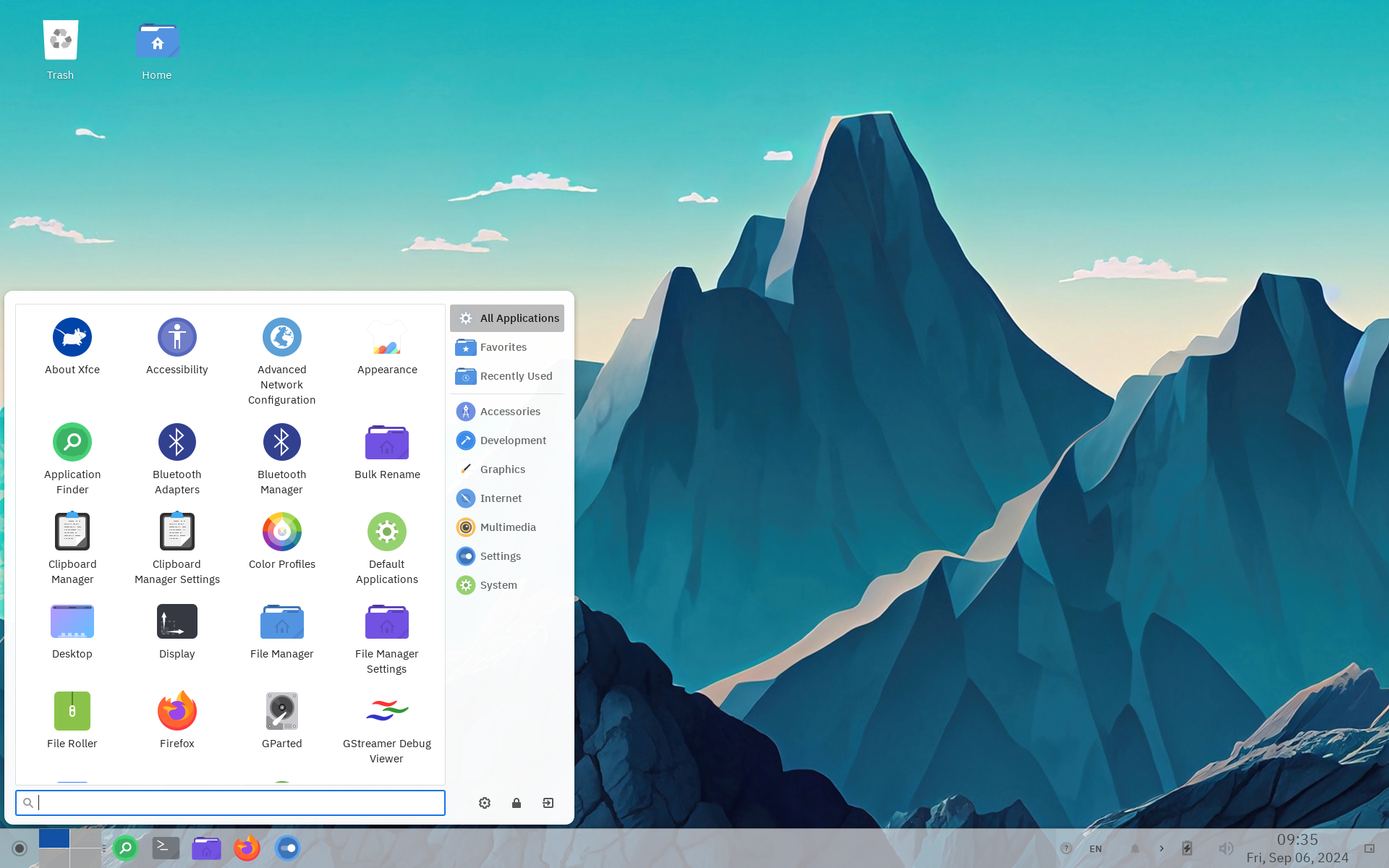
Application Menu is the place where you can list all your installed application on the left side and view a well organized list on right side. You can Launch the application menu by pression 4. Application Button
5. Desktop Workspace Switcher
You can manage and switch between multiple desktop workspaces using the Desktop Workspace Switcher. By default you got 4 Virtual Desktops but you can add, remove and/or rename them as per using requirements by right-click on the Workspace Switcher -> Workspace Settings
6. Taskbar
All the Pinned and Active applications on the active Desktop Workspace are visible on the taskbar, You can Pin, Unpin and/or Move them to different workspace by right-clicking on the targeted application Icon.
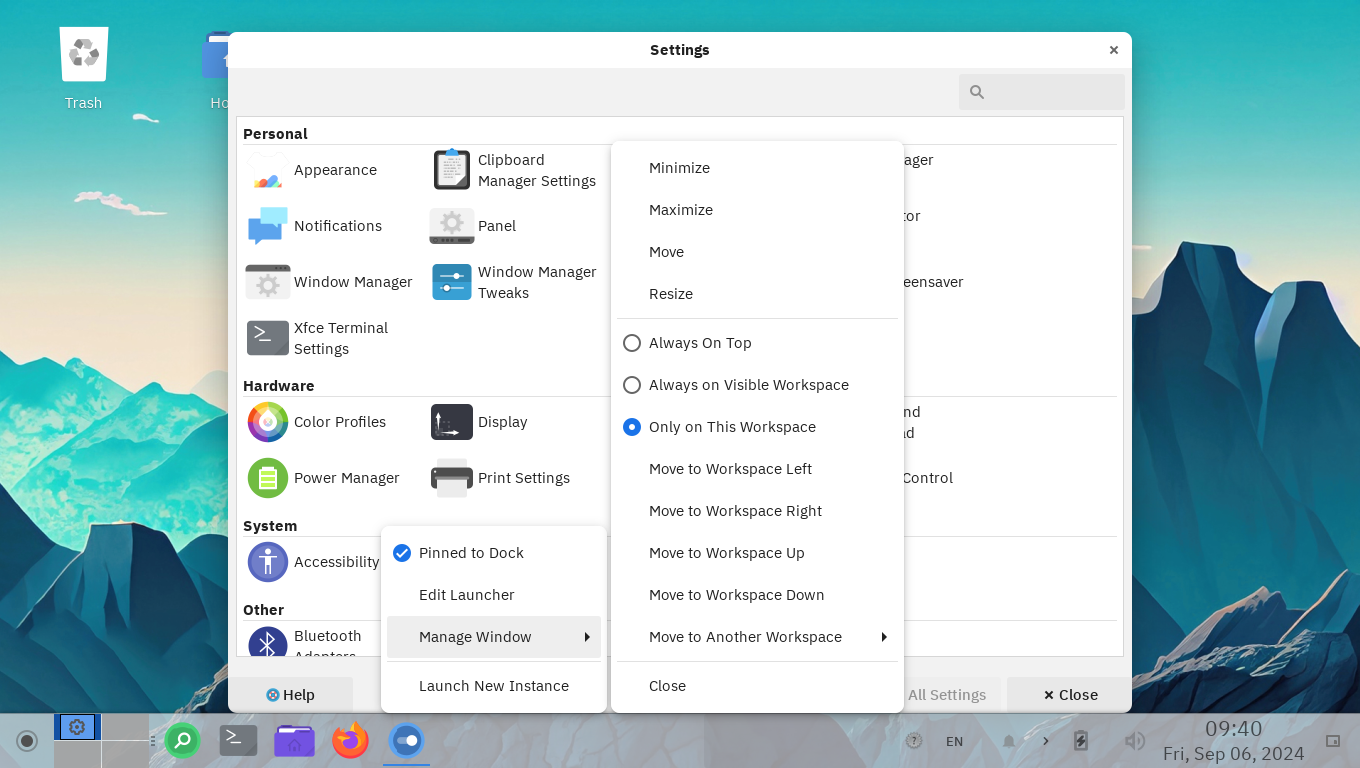
7. System Tray and Plugins
Quick settings and plugins are on the right side of xfce4-panel you can interact with various of them by clicking or right-clicking on them. On the default setup rlxos provides
- Keyboard switcher: You can switch between configure languages and set specific keyboard language per application
- Notification: To View all system notification.
- Network Manager: To Connect and manage your network devices.
- Power Manager: View your device power and configuration.
- Audio Control: Control your device Input and output audio device.
- Clock: Date and time plugin
- Show Desktop: Show desktop button hide all application on the active workspace in single click
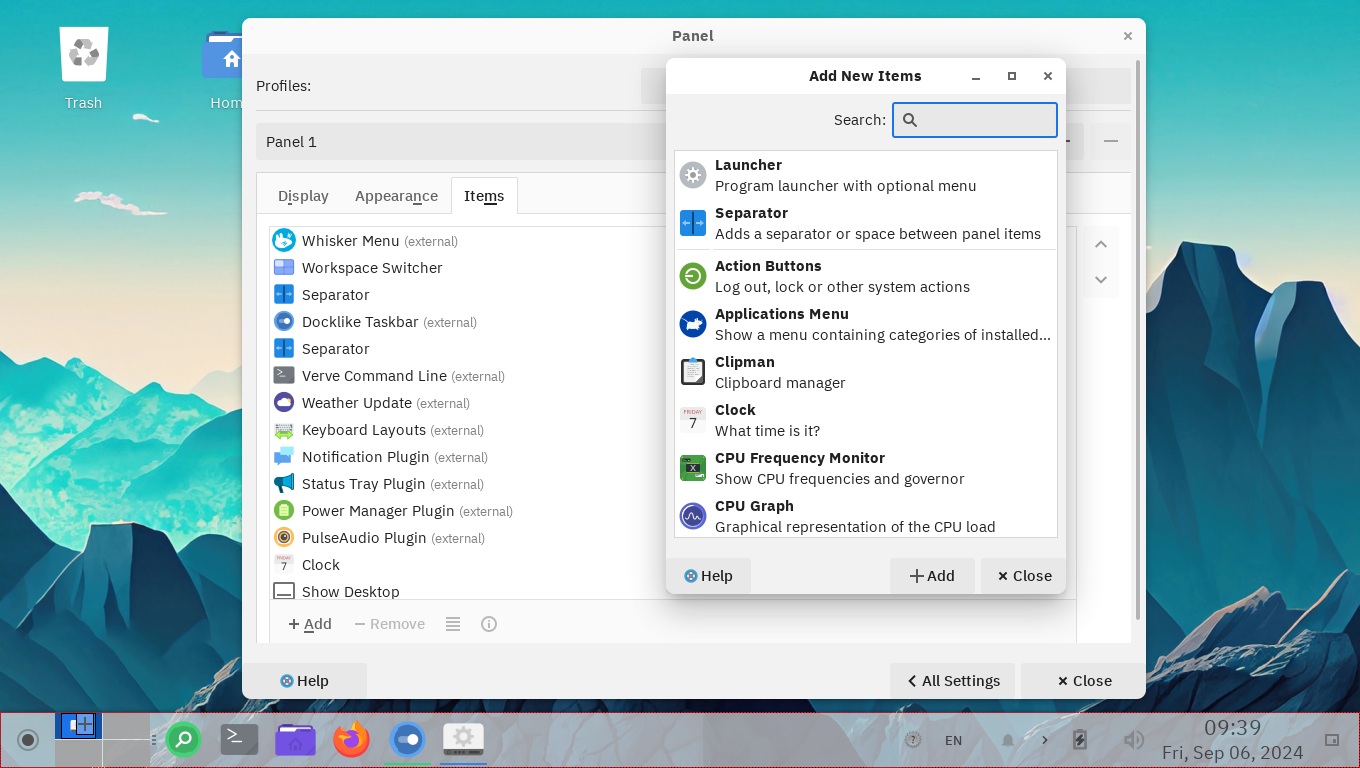
You can add a plugins already available on your system as per your need from Settings -> Panel. From here you can Add and Remove one or more than one panels, Backup and Restore your panel configurations customize your panel Appearance and Add multiple Items on the item Tab.
8. Application Menu Commands
To Lock, Log Out, Switch User and ShutDown you system you can use Application Menu Commands.
File Manager - Thunar
rlxos (Linux) doesn't have Local Disks C:, D: E: Like concept. Instead a very simple Home Directory mostly users care about, Where you can store your personal files and configurations.
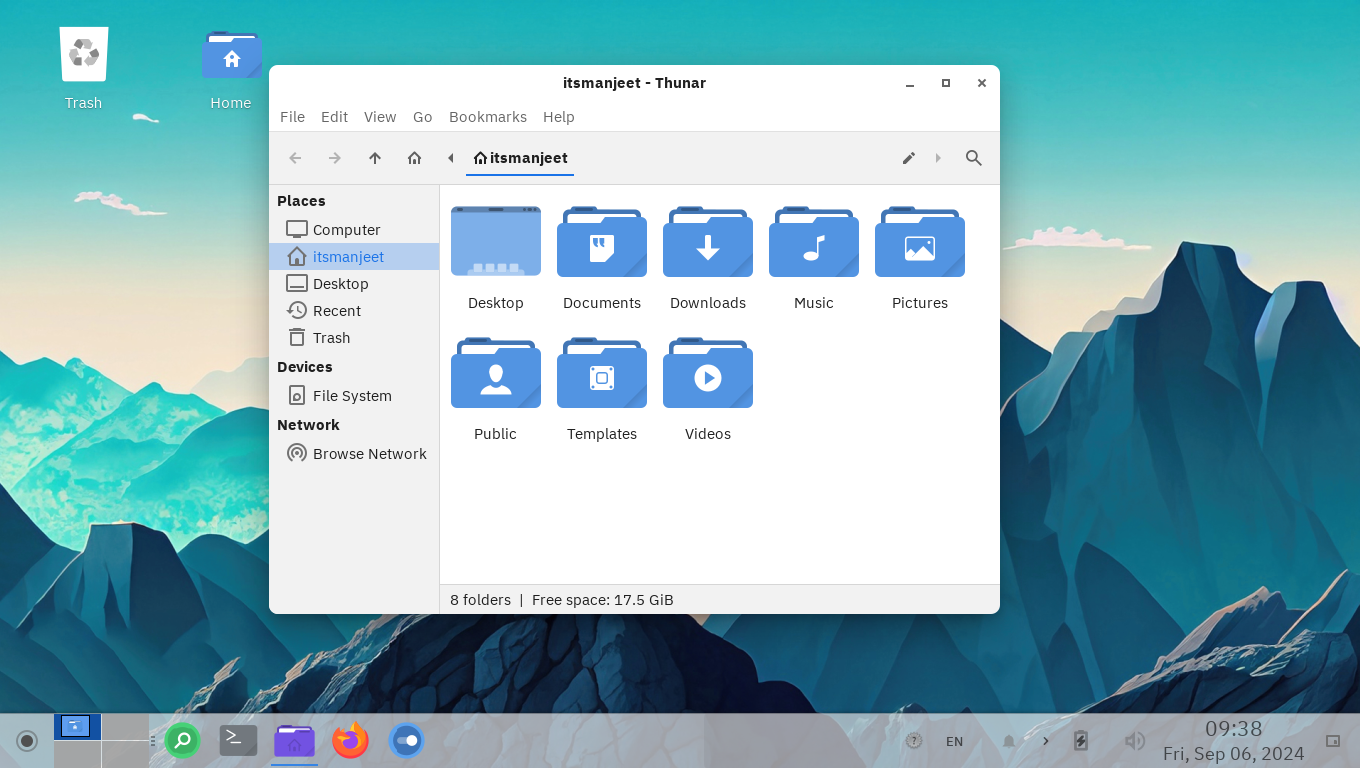
Side bar provide quick access to various locations that you can bookmark by right-click on the Folder and Send To -> Side Pane (Add Bookmark)
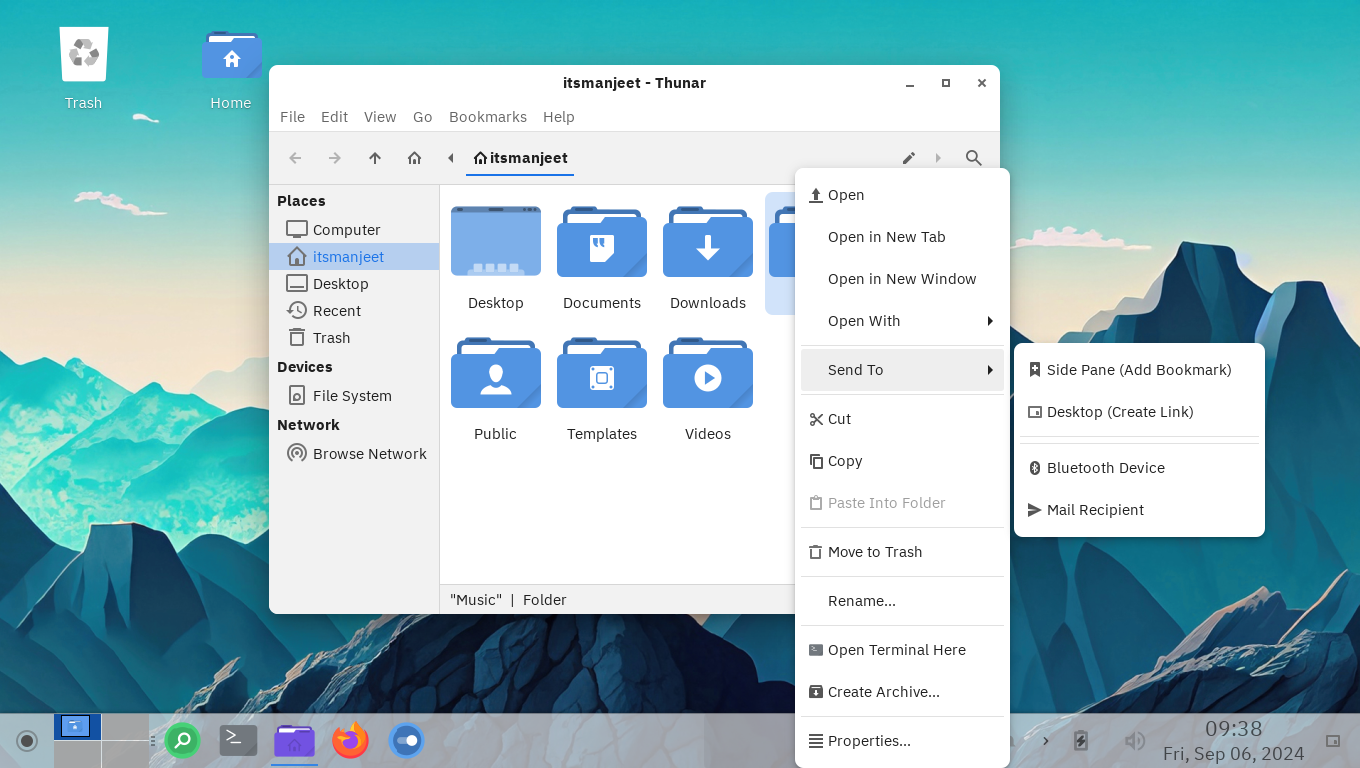
Device are the List of your Other Storage devices, Like Removable USB Drive, External Storage and even your Local Disks C: and Local Disks D:.
Application Finder
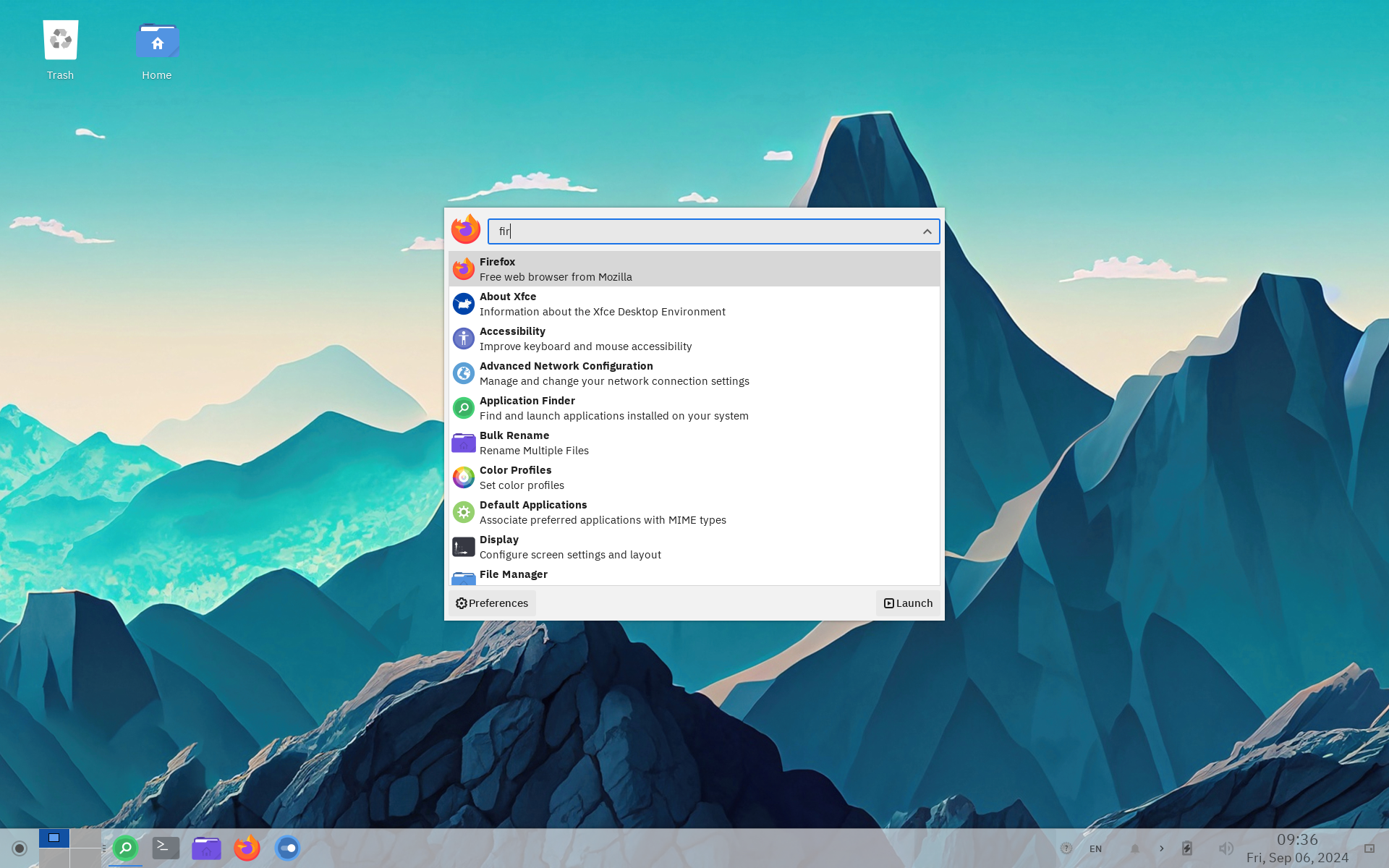
Application Finder is a quick keyboardish way to launch applications. Press Fn-2 key to launcher Application Finder -> Start typing the Application Name -> Press Enter to Launch.